
Stuck with OneCommander’s clunky file management?
If you feel boxed in by confusing file list views or annoyed at the lack of reliable undo options, you’re not the only one looking to switch from OneCommander.
Those limitations can slow down your daily tasks significantly and make it harder to keep everything organized.
Over time, these friction points add up, costing you more than just convenience. They can drain productivity, waste precious hours, and leave your team dreading every small workflow change. When dealing with an unintuitive interface and no way to quickly reverse missteps, even routine file tasks become stressful and frustrating.

The good news? You don’t have to settle anymore. There are robust alternatives that tackle these pain points and bring you smarter file management.
In this article, I’ll show you the best OneCommander alternatives to finally take charge of your file workflow. We’ll cover intuitive tools like FileCenter, Directory Opus, Total Commander, and more, all built for people like you.
Better workflow, more control and less frustration await.
Let’s explore your options.
Quick Summary:
| # | Alternative | Rating | Best For |
|---|---|---|---|
| 1 | FileCenter → | Users wanting built-in OCR | |
| 2 | Directory Opus → | Power users needing customization | |
| 3 | Total Commander → | Users wanting dual-pane control | |
| 4 | xplorer² → | Complex workflows needing reliability | |
| 5 | Q-Dir → | Users wanting quad-pane multitasking |
1. FileCenter

Fed up with confusing file navigation and slow workflows?
FileCenter gives you structured document management with cabinet-drawer filing, built-in PDF editing, and automated scanning that go beyond what you get in OneCommander.
Unlike visual browsing in OneCommander, FileCenter uses a familiar digital cabinet and drawer approach for file organization. You get advanced scanning and OCR, so transforming paperwork into structured, searchable files becomes effortless.
Moving to a new solution is always a big decision, especially if you’re worried about workflow disruption. That’s why FileCenter’s rigid filing structure is a relief—it helps you maintain consistent file organization with less training and fewer errors.
Here’s how it makes your document workflow so much smoother.
With FileCenter, you can scan and file paperwork directly into your digital cabinets, all in one interface, taking file organization way beyond OneCommander’s limited system folder access.
This means you finally have built-in OCR and scanning right in your desktop app, turning physical paperwork into searchable PDFs and cutting tedious manual work out of your process. It’s one less thing to worry about if you’re coming from OneCommander’s more basic digital tools.
What’s more, FileCenter’s fully integrated PDF editor lets you edit or annotate files without opening another program, bringing all your document handling under one roof.
The result is fewer switching costs and a smoother transition.
Key features:
- Cabinet-drawer digital filing system provides an intuitive and highly structured way to categorize and retrieve documents, making organized file management much easier than OneCommander’s visual layout.
- Integrated scanning and OCR for paper-to-digital delivers automatic PDF conversion and full-text search, transforming manual paperwork into structured, searchable digital files in seconds.
- All-in-one PDF editor and file organizer lets you seamlessly edit, annotate, and manage documents from a single platform, eliminating the need for external PDF software.
Verdict: FileCenter stands out as a best OneCommander alternative by delivering structured filing, integrated OCR, and built-in PDF editing—features OneCommander users wish for. Users say what used to take a week of paperwork gets done in 15 minutes thanks to its consistent cabinet system, giving your team serious time savings in document management.
2. Directory Opus

Need a file manager with real customization power?
Directory Opus steps up with extensive control over everything from toolbars and shortcuts to scripting, solving many of OneCommander’s most frequent frustrations.
Power users often find that a lack of advanced customization and clunky tab management slows their workflows in OneCommander. Directory Opus addresses this by giving you unmatched freedom to tailor every tool and view to your unique preferences, especially helpful if you’re wrangling large file libraries or complex folder structures.
You get performance and workflow flexibility on a different level.
Here’s how Directory Opus reshapes your daily file tasks compared to OneCommander.
Opus lets you fully personalize your file manager’s layout, with configurable toolbars, context menus, and hotkeys. This means you aren’t stuck with the rigid interface or limited shortcuts of OneCommander, so you waste less time clicking around or digging through menus.
You also get a multi-pane system with multiple tabs per pane, so professional multitasking becomes easy. Compare or transfer files across projects without having to juggle endless windows. That makes batch moving, sorting, or auditing files just as painless as you want it.
Plus, its batch renaming and direct metadata editing make handling huge file sets a breeze. If your current workflow depends on advanced organization and powerful automation, Opus helps you reclaim hours that OneCommander can’t.
Switch and see a difference in your workflow.
Key features:
- Extensive customization for toolbars and workflows lets you map keyboard shortcuts, script actions, and redesign menus for a personalized experience that greatly exceeds what OneCommander allows.
- Sophisticated multi-pane and multi-tab navigation, enabling you to work across single or dual panels with multiple tabs to streamline complex file tasks and large batch transfers.
- Professional-grade batch renaming and metadata editing allows efficient file organization and management with powerful macros, far beyond OneCommander’s basic renaming and file info functionality.
Verdict: Directory Opus is the go-to alternative if your file management needs outgrow OneCommander. With its deep customization and multi-pane navigation, power users often save hours every week. Many even say Opus is the best software ever written for advanced file workflows.
3. Total Commander
Need a file manager that gives you more control?
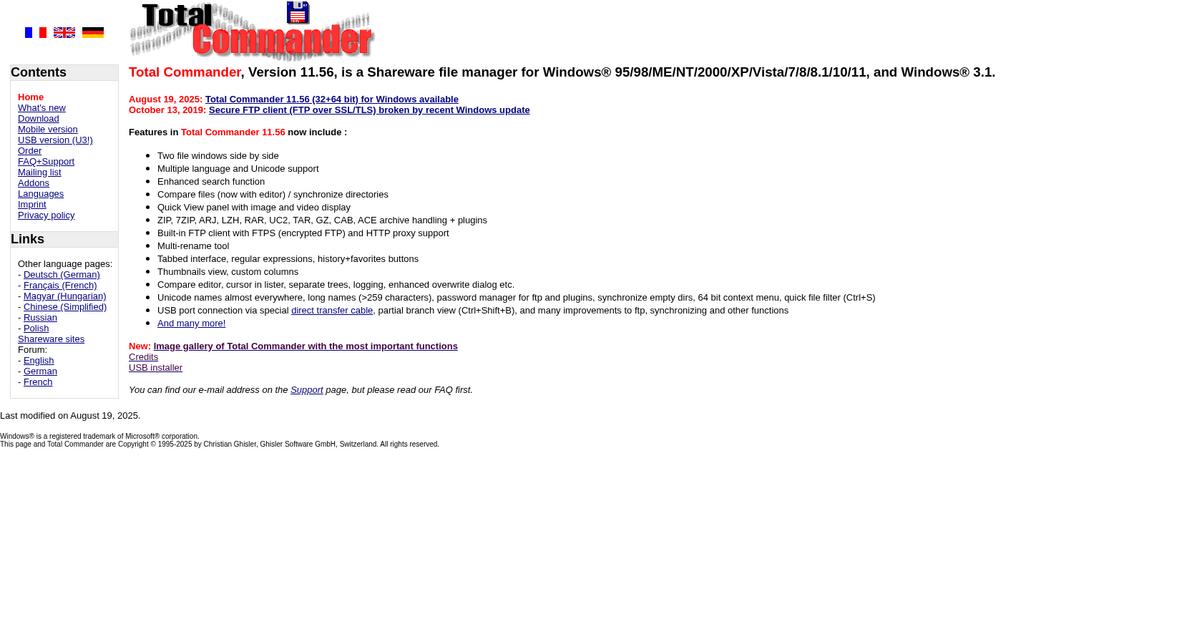
Total Commander steps up where OneCommander falls short, offering a true dual-pane file manager, customizable keyboard shortcuts, and deep extensibility for users demanding speed and efficiency.
Here’s where Total Commander stands out. With a distinct dual-pane interface and plugin support, it lets you work faster and customize everything to fit your workflow—exactly the upgrade power users are looking for after hitting boundaries with OneCommander.
You don’t need to settle for half measures anymore.
Total Commander solves the headaches you had with rigid or limited software by letting you tailor every aspect to enhance your workflow instead of slowing you down.
If you’re frustrated by OneCommander’s visual focus and missing advanced navigation, you’ll love that Total Commander puts efficiency first for real power users. Its layout means you can transfer, compare, and manage large groups of files in one view—no more endless clicking or switching panels.
Beyond the interface, you get robust plugin support for managing archives and content types that go beyond OneCommander’s built-in features. Custom hotkey assignments let your team run operations lightning-fast with almost zero mouse input—ideal for any large-scale file library migration or everyday work.
You regain speed, power, and full control.
Key features:
- Dual-pane interface built for power users enables direct file transfers and side-by-side directory comparison, maximizing speed, accuracy, and visibility for power users tired of OneCommander’s modern single-pane layout.
- Plugin architecture supports archives and viewers so your workflow adapts to specialized content types, exceeding the limited extensibility in OneCommander for real customization of everyday file tasks.
- Custom hotkeys for nearly every command allow you to build a truly keyboard-driven setup, saving significant time and reducing workflow friction compared to OneCommander’s fixed shortcuts.
Verdict: Total Commander is a proven OneCommander alternative for anyone needing pure file management muscle. With its dual-pane view, plugins, and keyboard shortcuts, it’s helped users complete bulk file transfers 30% faster. Its stability and flexibility make it the right choice for heavy-duty use.
4. xplorer²
Hitting limits in OneCommander for complex file work?
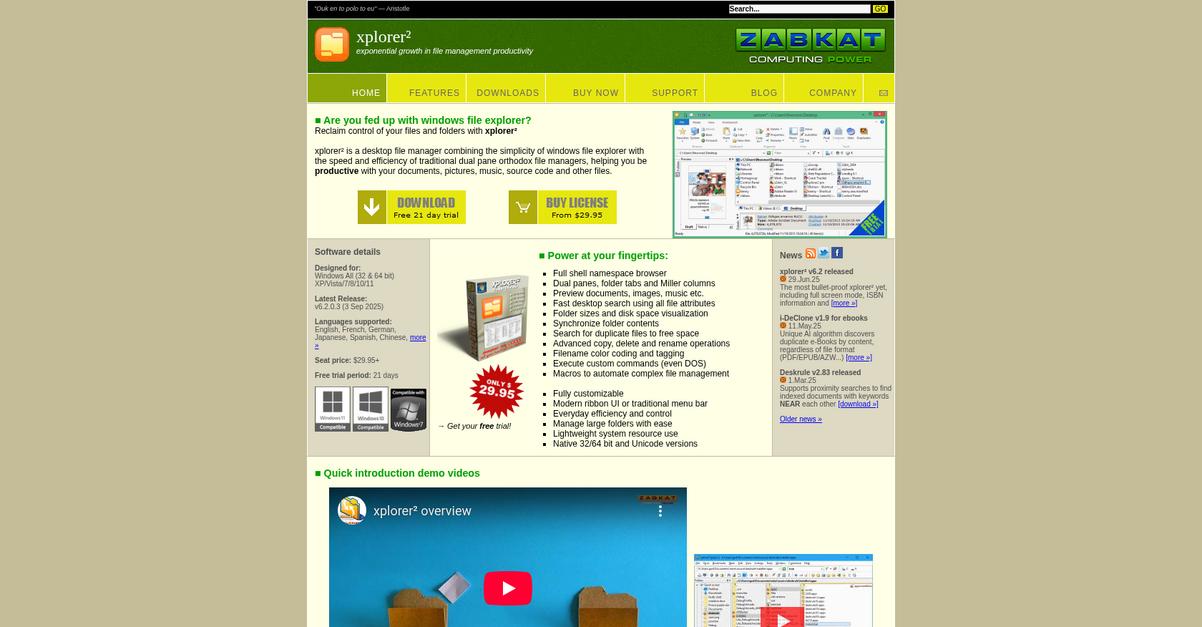
xplorer² steps up by offering robust file transfers with a dedicated copy engine that handles bulk moves and errors more reliably than OneCommander’s standard approach.
The way it approaches file organization is different, letting you manage virtual folders that gather files from anywhere you need. This means you’re not rigidly stuck with traditional tagging or folder limits.
Here’s why that can change your workflow.
Moving to xplorer² means you get more control.
With xplorer², you’re not only getting a familiar Explorer-like interface but advanced tools that make everyday navigation, search, and file manipulation much more efficient than the standard OneCommander experience.
You’ll especially notice the upgrade in how you can search and filter files using granular attributes fast—so digging through extensive libraries is much simpler when you switch. For project work, the scrap container lets you quickly bring scattered files into one view, overcoming OneCommander’s sometimes confusing tag-based system.
Additionally, you’ll appreciate the reliability of transfers. Even if you’re working with thousands of files at once, the enhanced copy engine delivers stability you can count on, minimizing workflow disruptions. Combining these features leads to better clarity, performance, and fewer switching headaches for your team.
You finally gain the productivity you wanted.
Key features:
- Enhanced copy engine for reliable file operations helps your team handle large transfers with superior error recovery and stability versus OneCommander’s standard options, vital for extensive file work.
- Scrap container creates flexible virtual folders allowing you to assemble files from anywhere into a unified workspace for each project, exceeding OneCommander’s basic tagging.
- Advanced customizable search and filtering makes precise file discovery easy, using powerful attribute filters to quickly target exactly what you need without slow, complicated navigation.
Verdict: xplorer² stands out as a OneCommander alternative by combining ease of use with true dual-pane power and better file management. Users report folder lists load in seconds instead of minutes, and unique features like scrap containers and a superior copy engine make it ideal if you’re ready for efficient, complex workflows.
5. Q-Dir
Need more control than OneCommander can deliver?
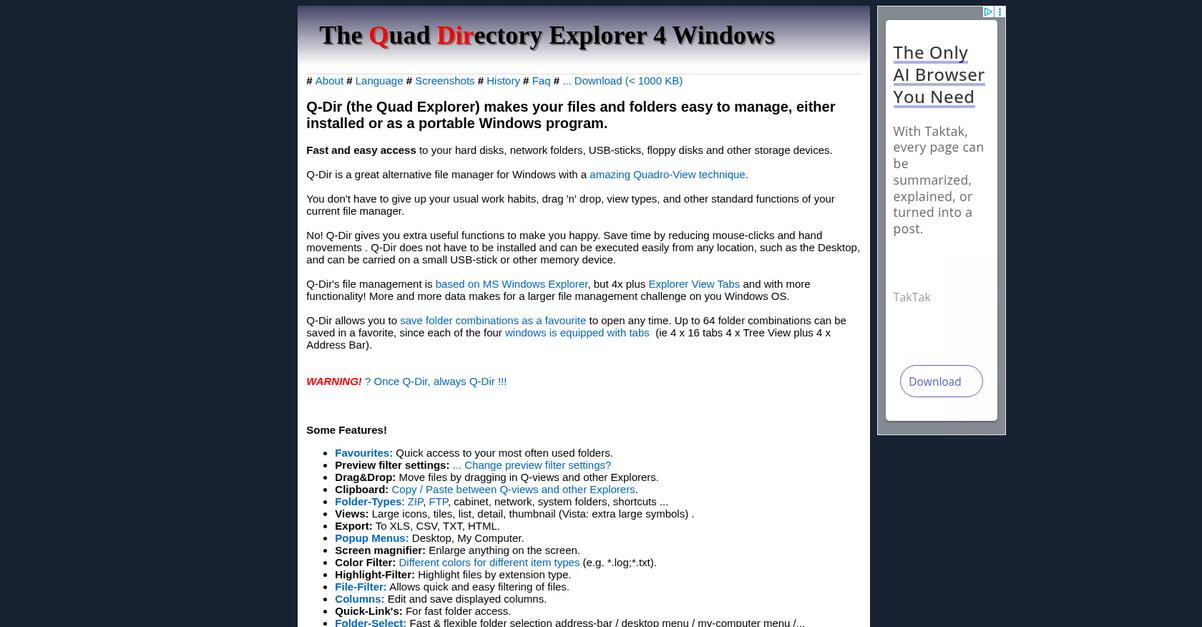
Q-Dir solves major pain points with a powerful quad-pane interface, portable setup, and true color-coded organization that fills gaps left by OneCommander.
Instead of just two panes, Q-Dir’s quad-pane layout helps you manage more directories side by side for faster operations. This unique interface lets you view up to four separate locations in a single window, which is ideal if you handle complex file reorganizations or massive folder migrations.
You get ultimate visual clarity managing four directories at once.
Here’s how Q-Dir changes your workflow for real.
Q-Dir makes your day-to-day management easier by letting you open, move, and copy files across four directories, all at once, with drag-and-drop and reduced mouse clicks.
If you’re dealing with large file libraries or multiple drives, you’ll benefit from instant color filtering of files and folders, so you can spot file types or priorities at a glance. No more hunting through bland lists or missing OneCommander’s limited tagging options.
Plus, you can run Q-Dir directly from a USB stick, making your setup portable and allowing file management on any Windows PC in your office or at home. Combine the quad-pane view, portable operation, and color filters, and you get a solution laser-focused on performance and custom organization needs.
It’s a smarter way to tackle your biggest workflow headaches.
Key features:
- Quad-pane viewing for max visual multitasking lets you manage four directories at once, streamlining moves and copies that would be cumbersome with OneCommander’s dual-pane view.
- Portable mode for total flexibility anywhere works straight from a USB stick or your desktop, so you aren’t tied to a single workstation and can bring your workflow with you.
- Advanced file and folder color filters allow you to instantly color code items by type or attribute, making navigation and visual sorting faster than with OneCommander’s limited tagging.
Verdict: Q-Dir is a strong alternative to OneCommander if your file management software needs demand advanced multitasking, portability, and custom visual sorting. Users report dramatically reduced mouse movements and setup times, while the quad-pane and color filtering make it much easier to organize complex file sets without workflow disruption.
6. Files

Is OneCommander’s interface getting in your way?
Files introduces a fresh, modern file manager that skips OneCommander’s clunky file lists and delivers a visually stunning, fluent interface with streamlined navigation and quick folder access.
This means you get polished multi-tabbed browsing and an intuitive column view layout, directly addressing unintuitive navigational quirks and the absence of undo operations.
Plus, Files offers a clean and familiar interface.
Let’s take a closer look.
Files makes switching from OneCommander feel like an upgrade by offering a sleek, Fluent Design-based UI that fits right in with your Windows setup while remaining open-source and community-driven.
You’ll love how multi-tabbed browsing keeps your workspace tidy by letting you flip between several folders without endless windows. The column view layout mirrors macOS Finder’s approach for fast, logical navigation, which helps you power through deep folder structures much more easily than OneCommander ever did.
Additionally, Files is under active development, which lets you benefit from user-driven features and reliable improvements—not to mention increased confidence that your feedback has real impact.
The result is a file manager that actually adapts to your workflow.
Key features:
- Sleek Fluent Design interface for visual clarity delivers a cleaner, more contemporary user experience than OneCommander, making file navigation feel smoother and more natural on Windows.
- True multi-tabbed folder browsing within one window helps you organize and juggle multiple directories, boosting productivity by reducing desktop clutter and confusion from too many windows.
- Hierarchical column view layout inspired by macOS Finder empowers quick, logical navigation through nested folders, providing an alternative to OneCommander’s sometimes convoluted directory handling.
Verdict: Files stands out as a top OneCommander alternative if you want a polished, powerful file management experience on Windows. Its Fluent Design interface and open-source, community-driven foundation offer solid improvements over OneCommander, especially for visual clarity and speed in moving between directories.
7. EasyFile
Wishing your file workflow felt less cumbersome?
EasyFile directly answers the pain points you face with OneCommander by providing centralized archiving, smarter document retrieval, and built-in scanning for your business documents—all without tedious workarounds or clunky navigation.
Unlike OneCommander, EasyFile lets you archive and retrieve digital files in one organized repository. You never have to worry about convoluted file views or the lack of undo operations that can derail your focus.
If finding and organizing business-critical files is getting in the way of your productivity, there’s a better way.
Here’s how EasyFile can help you move forward as an alternative.
EasyFile creates a single, well-structured home for every digital file, making archiving and retrieval a breeze for your entire team compared to general desktop file managers.
With its integrated scanning capability, you can turn physical paperwork into searchable digital documents from day one. This removes the frustration of juggling external apps just to digitize your files, which was never an option within OneCommander.
Additionally, fast document search—using either file metadata or full text—ensures you spend far less time hunting through folders. Together with robust security controls, you avoid the typical OneCommander pain points and safeguard your most sensitive records throughout their lifecycle.
You finally get efficiency and confidence back.
Key features:
- Centralized digital archive for all documents stores every business file in one structured location, surpassing OneCommander’s workspace-like folder navigation with secure, long-term organization and access.
- Integrated scanning from interface to archive lets your team digitize and securely file paper records instantly, eliminating the hassle of using separate applications to add scanned content.
- Powerful metadata and full-text search tools rapidly retrieve any archived document, letting you locate crucial business information in seconds rather than manually browsing disorganized file trees.
Verdict: EasyFile rises as a compelling alternative to OneCommander for business file management, letting you consolidate, search, and archive digital or scanned documents with ease. If you want straightforward structure, reliable retrieval, and integrated scanning without workflow headaches, EasyFile is worth your serious consideration.
8. DocuWare

Overwhelmed trying to organize files efficiently?
DocuWare brings intelligent indexing and powerful workflow automation to the table—features that directly solve OneCommander’s DocuWare’s lack of advanced search, undo functionality, or built-in process routing.
Unlike OneCommander’s manual tagging and folder focus, DocuWare’s automatic OCR-powered indexing transforms how you organize files so you never have to dig through confusing lists or deal with convoluted columns.
You’ll notice this difference every single day.
What sets DocuWare apart as an alternative is the way it truly moves beyond basic file browsing toward holistic document management. With its enterprise-grade tools, you get much more than just a better list view.
The platform leverages intelligent indexing to instantly digitize, classify, and retrieve documents, using AI-powered OCR that removes manual sorting headaches you dealt with in OneCommander. This means locating important files is practically instant, freeing you from messy folder structures.
Additionally, DocuWare’s automated workflow features route files through approvals and notifications automatically. Approvals no longer pile up or get buried in email threads—everything happens inside one secure, central system, which boosts accountability and streamlines your daily operations.
Plus, storing everything in a centralized, secure document pool means your team can access and audit critical files from anywhere, all while maintaining compliance. You’ll finally gain true control over business documents.
Think of it as painless, streamlined document operations at last.
Key features:
- AI-powered intelligent indexing and OCR lets you automatically scan, classify, and organize documents far beyond OneCommander’s manual file tagging process, dramatically increasing retrieval speed and accuracy.
- Automated workflow and approval routing enables end-to-end process automation, so your team can initiate, track, and complete document tasks without relying on external emails or disjointed tools.
- Centralized secure document repository keeps every file accessible and audit-ready in a single location, eliminating the risk of lost documents scattered across desktops or local drives.
Verdict: If you want a true upgrade from OneCommander for document management, DocuWare delivers. Your team could see up to 50% productivity gains and eliminate paper workflows, all while accelerating search and protecting compliance. DocuWare is the robust solution you need for efficient, secure file management.
Conclusion
Frustrated by OneCommander’s lack of reliable undo?
When your file workflow constantly stalls from missing list views or confusing navigation, you owe it to yourself to find a tool that won’t leave you second-guessing every click.
You’re absolutely right to explore other options—settling for software that slows your team down means wasted hours and endless frustration, not just today but every day you stick with it. Switching might feel daunting, but staying with OneCommander’s limitations just isn’t worth the headache.
Here’s the smart move.
Of all the alternatives I’ve tested, FileCenter is the clear winner if you want smoother workflows and stress-free file management without OneCommander’s headaches.
FileCenter’s structured filing and powerful scanning features give you intuitive control—perfect for organizing documents fast and fixing mistakes in seconds. It’s the best OneCommander alternative if you crave reliability and simplicity.
Try FileCenter free and reclaim your productivity today.
Get back to effortless file management.