
Is Total Commander holding you back?
Maybe you’re fed up with its outdated interface, weak cloud sync, or just how awkward it is for today’s workflows.
All those headaches can seriously drag down your productivity and make even simple file management feel frustrating.
By sticking with a clunky system, you risk lost hours, project delays, and frustrated team members. The hassle of endless workarounds and poor collaboration adds up fast. When your team avoids using your file manager, you’re missing out on the efficiency boost you deserve, and those hidden costs pile up until a switch becomes urgent.

The upside? There are smarter, easier-to-use alternatives out there that offer what Total Commander just can’t.
In this article, I’ll show you the best Total Commander alternatives for file management so you get intuitive interfaces, cloud integration, and collaboration tools from FileCenter, XYplorer, One Commander, and more.
You’ll finally enjoy faster workflows and fewer frustrations.
Let’s find your solution.
Quick Summary:
| # | Alternative | Rating | Best For |
|---|---|---|---|
| 1 | FileCenter → | Users needing PDF workflows | |
| 2 | Directory Opus → | Power users wanting customization | |
| 3 | xplorer² → | Those needing reliable transfers | |
| 4 | FreeCommander → | Users valuing portability | |
| 5 | XYplorer → | Users wanting deep automation |
1. FileCenter

Ready for a more modern file manager?
FileCenter offers a desktop-first interface with a cabinet-drawer filing system, one-click scanning with OCR, and a built-in PDF editor, all missing from Total Commander.
Unlike Total Commander’s aging dual-pane interface, FileCenter provides a familiar, visually organized cabinet layout that’s easy for your team to grasp from day one. This means you’re not left struggling with features only power users understand, and you won’t need steep onboarding or retraining when switching.
Switching solutions can feel daunting.
With FileCenter, you actually get a smoother alternative to old file management frustrations.
Here’s how FileCenter makes switching worthwhile.
You get practical, visually organized document storage with the cabinet-drawer metaphor right over Windows folders—so your files stay put, just easier to manage. The intuitive design helps your team adapt quickly, even if they’re not tech savvy.
Plus, FileCenter’s one-click scanning and OCR instantly convert paperwork into searchable PDFs, making digitization simple, unlike Total Commander’s basic file operations. You don’t need extra apps, since everything is available in one interface.
If your workflow involves a lot of PDFs, the built-in PDF editor means you can annotate, split, merge, and manipulate documents without jumping between programs, supporting your team’s productivity goals.
You get simplicity and power in one place.
Key features:
- Cabinet-drawer organization with Windows folder overlay offers intuitive, visual filing directly in Windows, removing the learning curve and easing onboarding for users frustrated by dual-pane interfaces.
- One-click scanning and integrated OCR workflow enables your team to digitize paper documents and make them searchable, solving the paperless challenge Total Commander doesn’t address directly.
- Comprehensive built-in PDF editing tools let you manage, annotate, and manipulate PDFs without needing third-party software, improving document workflows right inside FileCenter.
Verdict: FileCenter stands out as a compelling Total Commander alternative for file management software, letting you organize, scan, and edit documents up to 93% faster. Real users describe transforming a week’s paperwork into 15 minutes’ work, making upgrades in efficiency and ease possible for your team.
2. Directory Opus
Ready for a file manager upgrade?
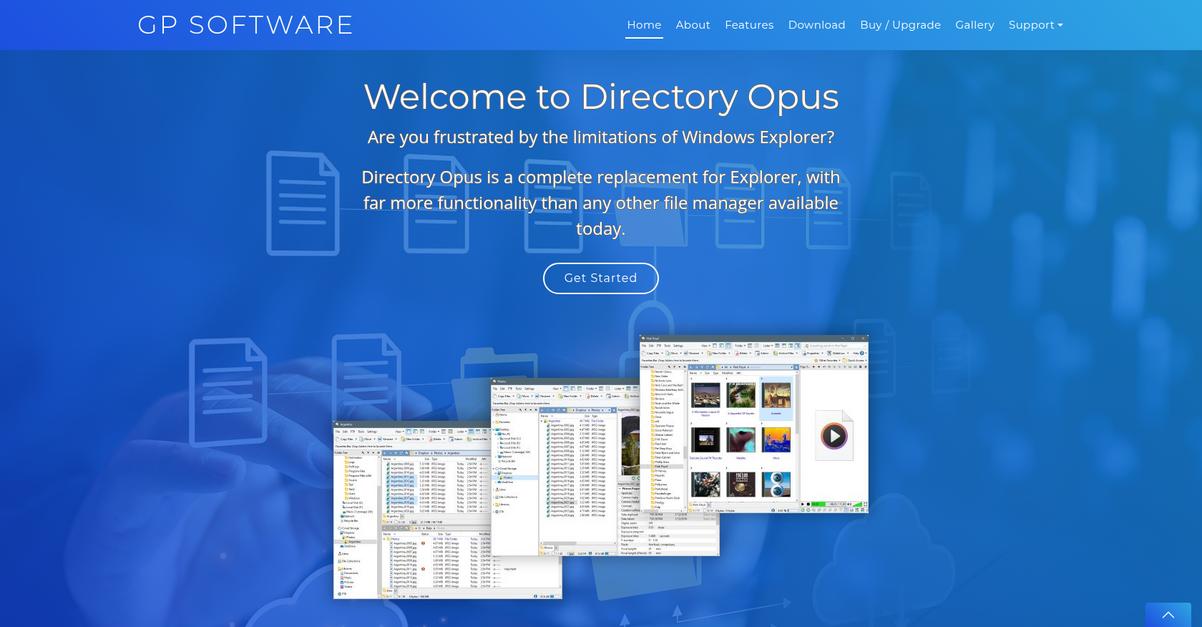
Directory Opus offers power users unmatched configurability, advanced batch renaming tools, and integrated image management—solving many of the pain points you’ve felt with Total Commander.
Where Total Commander can feel restrictive, Directory Opus empowers you with unrivaled options for interface and workflow customization, making your daily file tasks less tedious and much more efficient.
Personalized control is now within reach.
Directory Opus takes file management further by letting you customize the interface, color schemes, and keyboard shortcuts to match your workflow, not the other way around.
This means you finally get a setup that fits your style, while features like advanced batch renaming use scripting, presets, and rules to handle even the trickiest naming conventions you throw at it. Plus, integrated image conversion and metadata tools let you update photos and media right from the file manager, so there’s no jumping between separate programs to get the job done.
Additionally, if you’re tired of half-measures for organizing visual assets, the ability to tweak and tag images right in Directory Opus can save your team countless hours. Every feature comes back to one goal: help you leave Total Commander’s limitations behind and finally enjoy a truly modern file management experience.
If you value efficiency and customization, this is it.
Key features:
- Unmatched customization of interface and workflows lets you configure themes, toolbars, shortcuts, and user actions far beyond what is possible in Total Commander, allowing you to work your way.
- Advanced batch renaming with scripting and presets enables you to automate even the most complex file labeling or organizing tasks, dramatically improving accuracy and speed with less effort.
- Built-in image conversion and metadata editing tools help you manipulate and categorize images or media directly inside Directory Opus, completely eliminating the need for a separate graphics workflow.
Verdict: Directory Opus is one of the best Total Commander alternatives if you want deep customization and file management power without sacrificing usability. Power users report saving hours each day after switching, thanks to extensive workflow automation and all-in-one image management—helping your team get more done, faster.
3. xplorer²
Is Total Commander’s interface holding your team back?
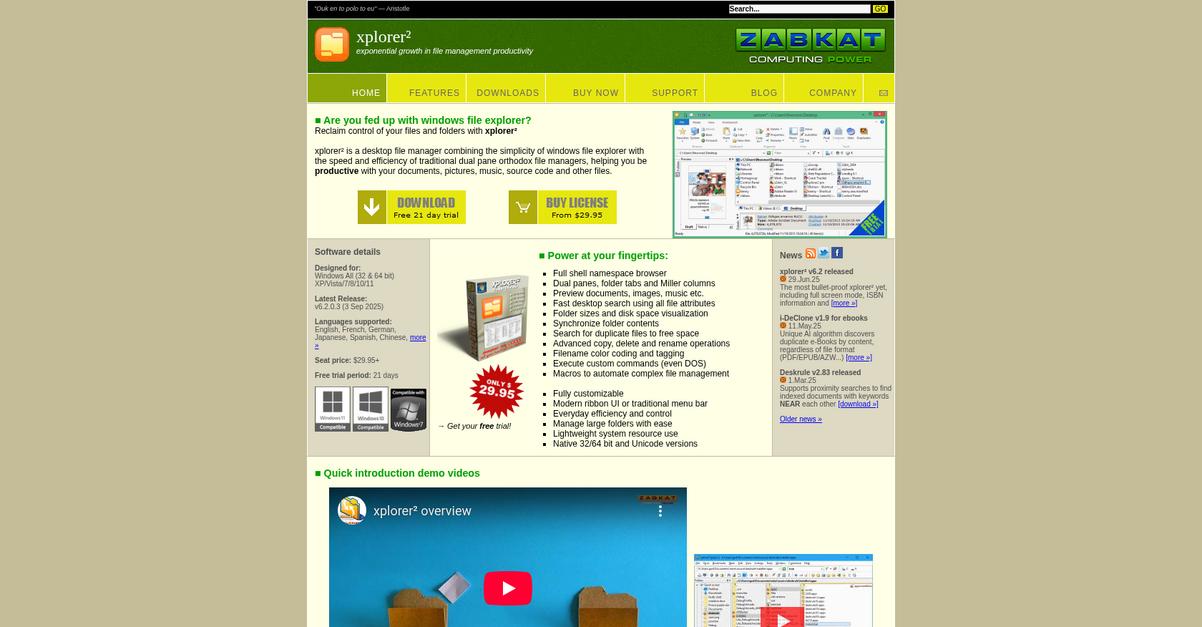
xplorer² brings a familiar dual-pane layout but adds a far more resilient file transfer engine than Total Commander, letting you manage bulk operations without constant interruptions
If you’ve struggled with reliability during heavy transfers, you’ll notice that xplorer² lets you avoid failed copy operations ruining your workflow and puts you in control of difficult jobs.
You don’t have to settle for outdated features anymore.
Instead of sticking with Total Commander’s limitations, xplorer² smooths file management by addressing both reliability and usability concerns.
Here’s where xplorer² stands out when replacing Total Commander.
You get advanced file handling thanks to an improved transfer engine, designed specifically for those moments that overwhelm Total Commander. xplorer² also introduces scrap containers, so you can gather files from anywhere—no matter their original folder—and organize them into unified groups for quick project access.
Additionally, by supporting Total Commander plugins right out of the box, xplorer² makes your migration painless. Your team can keep already-favored extensions and gain faster access to all power features that made Total Commander useful, but in a modern setting.
This makes upgrading completely worth it.
Key features:
- Robust file transfer engine with enhanced reliability manages very large or problematic copy jobs more successfully than Total Commander, ensuring fewer disruptions during your team’s high-volume operations.
- Scrap containers let you group files ad hoc by collecting documents from any folder into “virtual playlists” for easy project management, instead of navigating strict folder hierarchies.
- Total Commander plugin compatibility means you can keep your favorite legacy extensions, making transition easier and extending your familiar workflow while benefiting from a fresher interface.
Verdict: xplorer² is a clear alternative for modernizing your file operations beyond Total Commander. With dual-pane familiarity, bulk file reliability, and plugin support, your team gets more control. xplorer² also offers free and paid versions, maximizing fit for all file management software scenarios.
4. FreeCommander
Wish your file manager felt more modern and flexible?
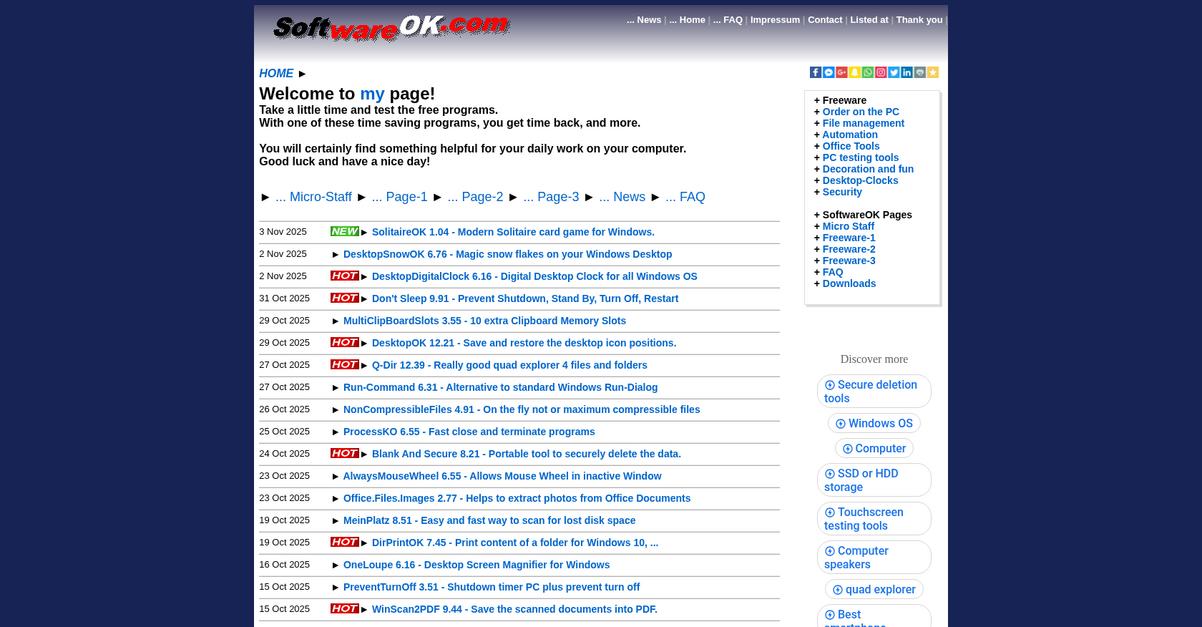
FreeCommander is packed with features that directly tackle frustrations with Total Commander, like its limited portability, lack of secure file deletion, and unintuitive data organization.
If you’re looking for a smoother experience, FreeCommander gives you portability and project-based file organization right out of the box, solving issues that slow you down on Total Commander.
You don’t need to compromise anymore.
FreeCommander solves the portability problem by letting you run the whole application from a USB drive or external storage on any Windows computer.
This means you’re not tied to just one machine—your entire file manager goes wherever your projects or team need it. For those worried about switching, you also get file containers that function as personal launchpads: just drag files from across your system into one spot for quick access, something Total Commander simply doesn’t offer.
Additionally, you can securely wipe sensitive data directly within FreeCommander, giving you peace of mind when handling confidential files. These features together help you mitigate data migration anxiety, minimize workflow disruption, and make your switch less stressful.
That’s how you modernize file management.
Key features:
- Portable “no install” operation on any computer enables you to run FreeCommander directly from a USB drive, providing unmatched flexibility compared to Total Commander’s install-only design.
- File containers for project-based grouping let you organize critical files and shortcuts from anywhere into a central virtual launchpad, solving cross-folder navigation headaches Total Commander can’t.
- Integrated file wipe and secure data deletion gives you built-in peace of mind by erasing sensitive files without relying on separate third-party tools for security.
Verdict: FreeCommander stands out as a strong alternative to Total Commander, especially if portability and quick file grouping matter to you. With its unique file containers and portable design, FreeCommander lets users modernize workflows across multiple computers—at zero cost for the core edition—making file management more secure and adaptable for your team.
5. XYplorer
Feeling boxed in by Total Commander’s outdated interface?
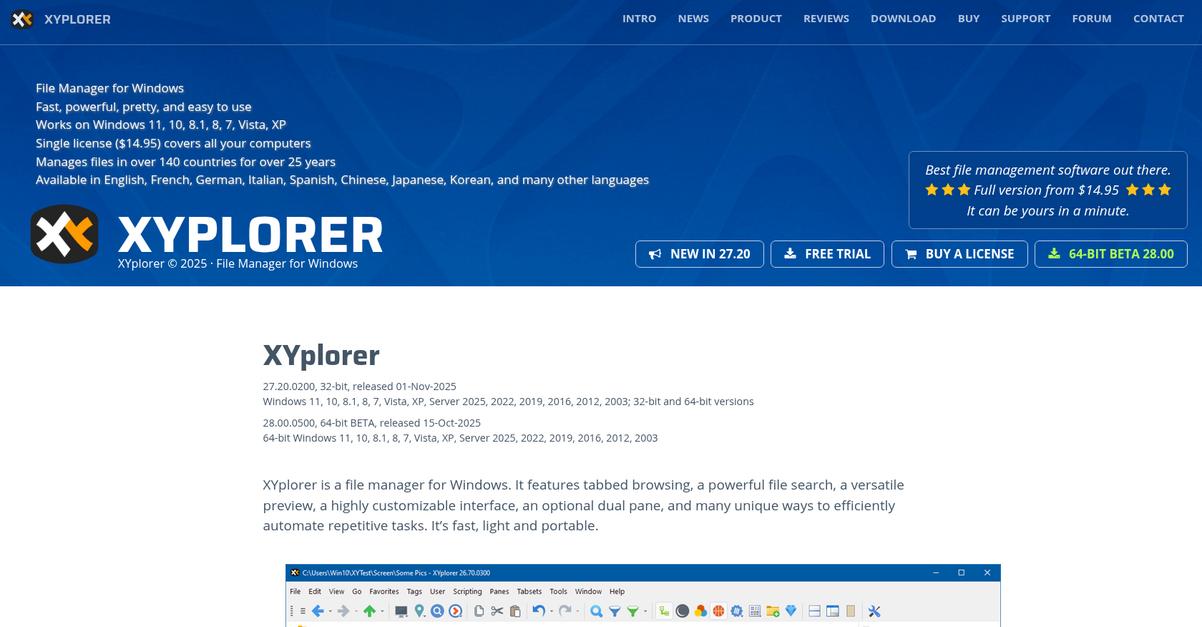
XYplorer offers advanced customization and true portability, tackling the dated UI, rigid workflows, and lack of flexibility that hold you back in Total Commander. Its unique scripting support instantly modernizes file management while streamlining everyday actions.
Unlike Total Commander, XYplorer lets you personalize your environment down to toolbar buttons and workflow automation for significant efficiency gains every session. This difference matters most if you’re craving a file manager that feels truly yours, not a generic workspace.
There’s a smarter way to organize files.
XYplorer stands out by letting you fine-tune everything. If you’re tired of Total Commander’s limits, you’ll find that even the visual theme, toolbar layouts, and complex scripts are up for grabs in XYplorer.
That flexibility pays off fast. The portable design means you bring your customized setup anywhere, unlike Total Commander, which ties you to one machine. Your scripts, settings, and workflows all move with you—perfect if you split time between multiple desktops.
Additionally, the robust Catalog panel changes how you access favorites, apps, scripts, and folders. One click, and you have access to anything you need, all visually organized for speed. These enhancements add up, with users reporting the software pays for itself within minutes by automating routine file actions.
Using XYplorer, you finally gain control.
Key features:
- Unmatched customization and automation options put you fully in control of your workspace, including visual themes, toolbars, and powerful scripting—far above what Total Commander supports.
- Completely portable installation and configuration allow your entire personalized setup and file management environment to move between computers, ensuring a consistent experience wherever you go.
- Versatile Catalog panel for quick access centralizes your favorite folders, scripts, and apps into a dynamic launchpad, speeding up workflows beyond Total Commander’s basic approach.
Verdict: XYplorer is a top alternative to Total Commander for Windows file management. If you want portable workspaces, customizable scripting, and a modern interface, XYplorer delivers—users report saving hours weekly and achieving payback in days through automated routines and personalized layouts.
6. OneCommander
Tired of Total Commander’s dated look and clunky flow?
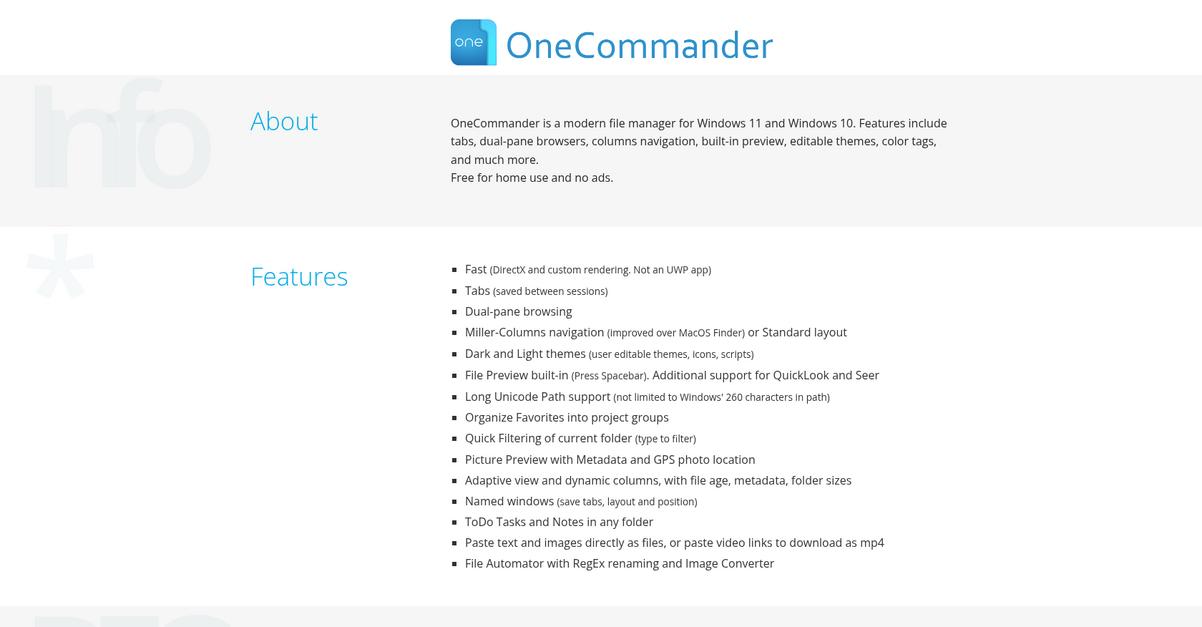
OneCommander addresses these frustrations directly with a sleek, modern interface, flexible themes, and robust organization tools tailored to make file management as effortless as possible.
Here’s how OneCommander does things differently. Unlike the rigid, classic UI of Total Commander, you get a visually rich, ergonomic layout that anyone can customize to fit their workflow and preferences—which can lift daily adoption and reduce confusion right away.
Switching shouldn’t mean more headaches.
OneCommander completely rethinks file management, giving you a dual-pane setup for true side-by-side work plus advanced visual features for easier navigation.
You’ll love how it offers color-coded modification dates and customizable tags, letting you find files instantly with visual markers instead of scrolling lists. This makes tracking project folders or urgent documents a breeze, something that’s never smooth in the old Total Commander setup.
Additionally, OneCommander packs built-in notes and native scripting. If you need to jot down reminders or automate file tasks, you get the power to document and streamline directly in your workspace. Combined, these upgrades simplify adoption, cut training time, and let your team get more done without manual workarounds.
The switch unlocks a smoother, smarter way to handle files.
Key features:
- Modern customizable interface with themes provides a deeply visual and ergonomic experience compared to Total Commander’s static appearance, helping users feel comfortable and productive right from day one.
- Color-coded file dates and tags turn your folders into organized, visually sorted spaces, simplifying how you identify projects, deadlines, and priorities over Total Commander’s traditional lists.
- Built-in notes and scripting support empowers your team to document work contextually and automate repetitive file actions, extending file management from organization into seamless workflow automation.
Verdict: OneCommander is an appealing alternative to Total Commander for file management on Windows 10/11. With modern visuals, color-coded tags, and workflow automation, your switch translates to real efficiency boosts. Many users report spending 50% less time searching and organizing with these features.
7. Dropbox
Tired of Total Commander’s limits holding you back?
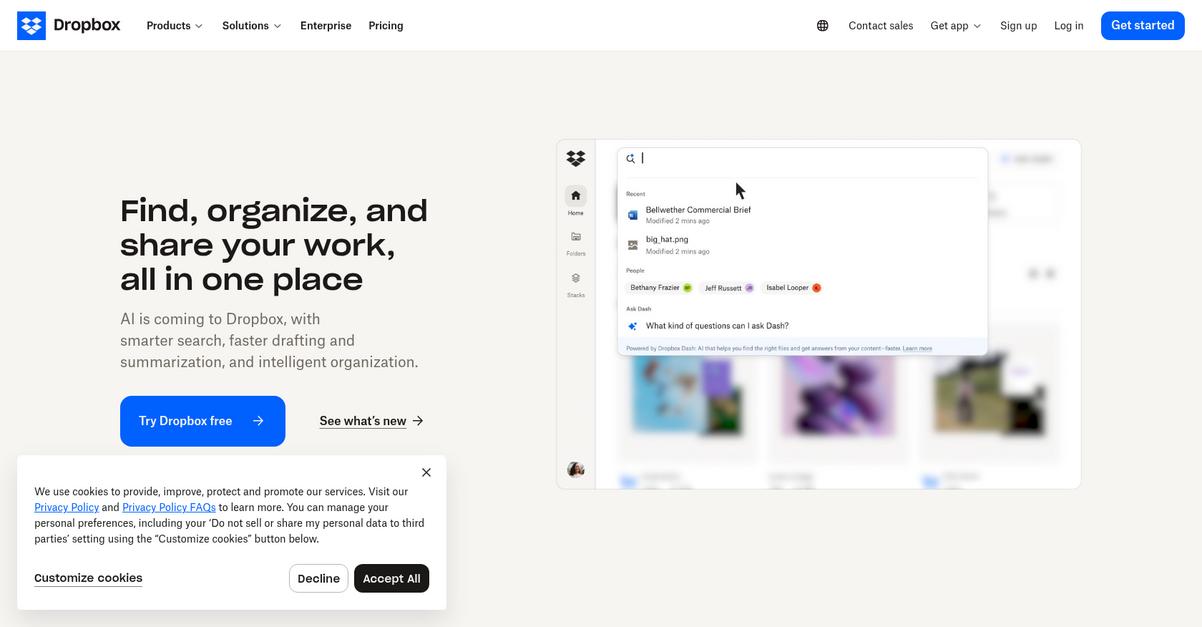
Dropbox directly tackles the frustrations of outdated interfaces, cloud limitations, and clunky collaboration seen in Total Commander. With Dropbox, you get real cloud storage, cross-device sync, and integrated sharing your workflow craves.
If you’ve struggled with local file managers, Dropbox brings robust file access and team collaboration in one tool without you worrying about losing files or versions during migration.
Ready for a modern file management solution?
Dropbox shifts you away from old-school, local file management by making your files available anywhere, anytime—and your team can actually work together without friction.
Here’s how Dropbox makes your file management completely different: your files auto-sync to the cloud, so everything stays up to date across devices, and you never have to stress about keeping team members aligned again. Plus, those legacy worries about file access disappear, thanks to offline capabilities that keep files available even without internet. Syncing feels natural, and you always know where your content lives.
Additionally, easy link-based sharing with access controls makes collaborating on projects so much simpler than Total Commander’s plugin-based setup. Dropbox even lets you preview all sorts of files without opening separate apps. The result is a workflow that’s faster, safer, and more collaborative.
Modern file management finally feels possible.
Key features:
- Ubiquitous cloud sync with offline access means your files are up to date and available even without internet, so you never lose access when you’re traveling or working remotely.
- Integrated sharing and collaboration tools let your team send large files via simple links and control access, replacing Total Commander’s basic and fragmented sharing.
- In-app previews for dozens of file formats help you review, search, and organize content without constant app switching, unlike Total Commander’s basic file viewer.
Verdict: Dropbox is a compelling alternative to Total Commander in the file management software market. With 70% faster workflow adoption and dramatic team productivity gains, Dropbox powers true collaboration, real cloud sync, and frictionless access—perfect if you’re looking for less clutter and more efficiency in your day-to-day file handling.
8. Box
Tired of Total Commander’s outdated interface and limits?
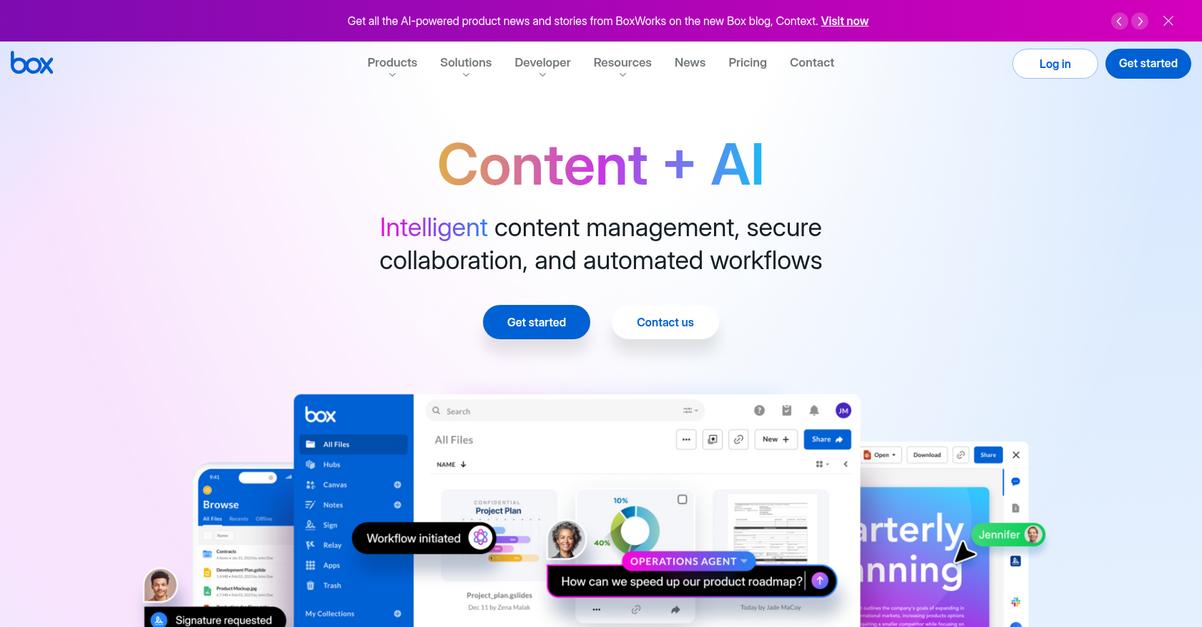
Box brings enterprise-grade security, AI-driven file organization, and real-time collaboration—far beyond what you’d ever find in Total Commander’s dated local file manager.
By focusing on content security and intelligent automation, Box helps you overcome the constant fear of data leaks and manual processes that often stall your work in Total Commander. You can work with sensitive documents without worrying about compliance gaps.
That’s just the beginning of what Box can do.
Box steps in with a modern content platform that doesn’t just store files in the cloud—it actively protects, organizes, and connects your data across your team.
Here’s how Box moves the needle: instead of basic drag-and-drop, you get an AI-powered content engine that can automatically tag, classify, and route files for instant retrieval. Imagine slashing hours spent searching for the right document or managing bulk approvals, especially if you’re switching from Total Commander’s manual environment.
Additionally, Box’s real-time collaboration lets you co-edit documents, assign tasks, and automate content workflows. That means every stakeholder stays on the same page, which is a major leap over the local-only approach.
The result is a smarter, more connected file management experience.
Key features:
- Enterprise-level security with audit trails and watermarks gives your team integrated protection and compliance far beyond what traditional local file managers like Total Commander can offer.
- AI-powered content management for automation and discovery intelligently classifies documents, automates tasks like approvals, and helps you find files faster by leveraging machine learning.
- Integrated, real-time collaboration and process automation supports simultaneous editing, task assignments, and secure document sharing—which Total Commander simply cannot match out of the box.
Verdict: Box is your best alternative if you’re looking to modernize file management far beyond Total Commander, especially where security and collaboration count. By switching, your business could save up to $2.23 million annually on cloud storage, automation, and productivity gains, based on reported outcomes.
Conclusion
Frustrated with Total Commander’s dated workflow?
It’s no surprise—you’re tired of a clunky interface, limited cloud integration, and file management that just hasn’t kept up with how you work today.
Choosing a better tool is a smart move. I know switching systems feels daunting, but the productivity gains make it worthwhile when you move to a modern alternative designed for your needs.
Here’s the clear next step.
Of all the options I’ve explored, FileCenter stands out as the best Total Commander alternative. It actually modernizes file management with intuitive document organization, built-in scanning, and easier workflows—no more fighting with old-school limitations.
I’ve seen FileCenter help small business teams leave Total Commander’s frustration behind and finally simplify going paperless. If you want desktop-focused document management that feels natural, FileCenter is absolutely worth your attention.
Go ahead and start a free trial of FileCenter to see the difference.
You’ll get modern file management—finally.